
Guide 5 of 5
Invite your team
Add people to your organisation, choose what they can see and change, and understand what a seat is on your plan.
Pinion is priced per business, not per person, so inviting your team costs nothing extra up to your plan’s seat limit. Free includes two seats, Professional twenty-five, and Max a hundred.
1. Open Members
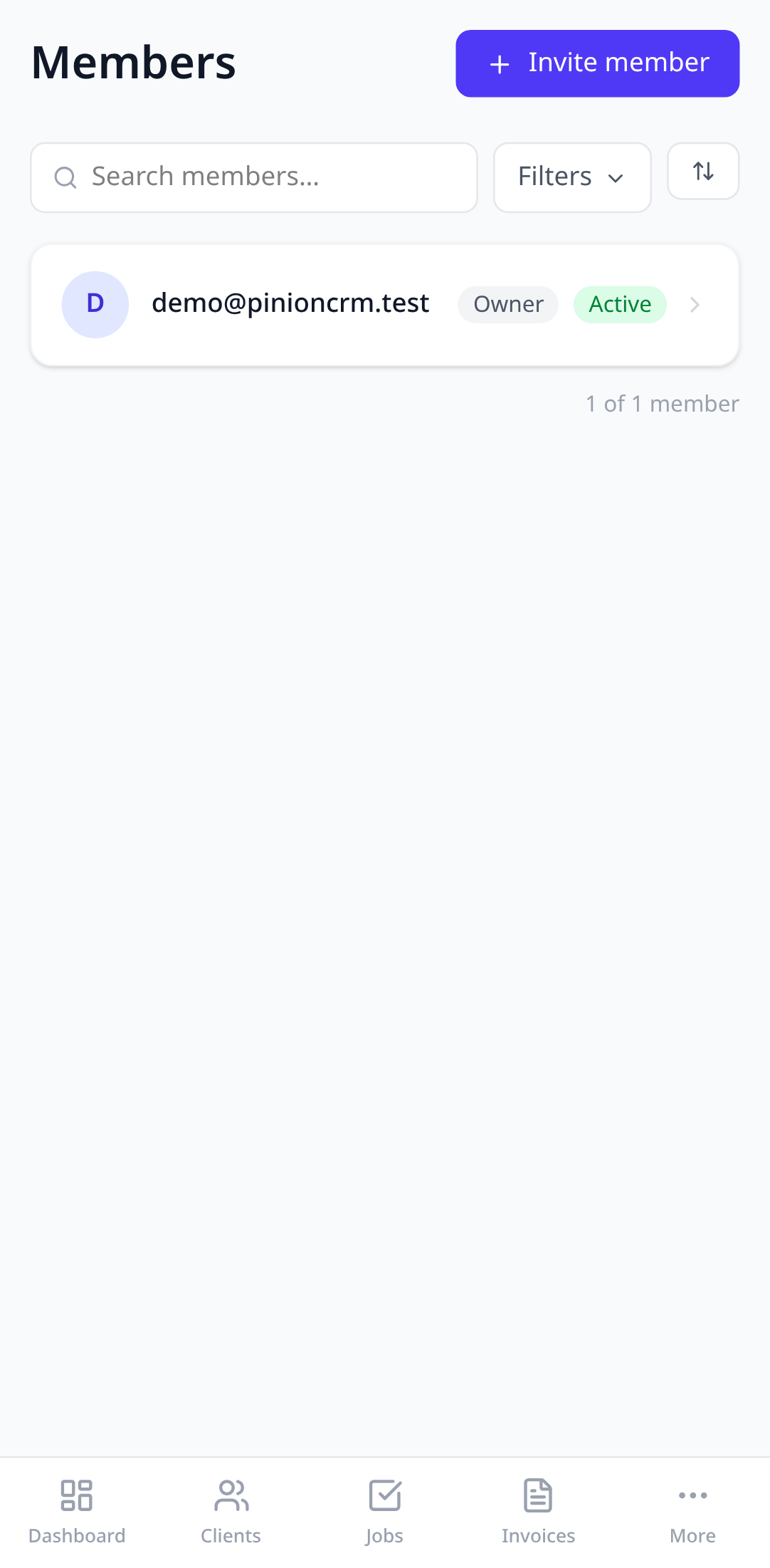
Tap More in the bottom bar, then Members. You’ll see everyone in the organisation and their role.
2. Send an invite
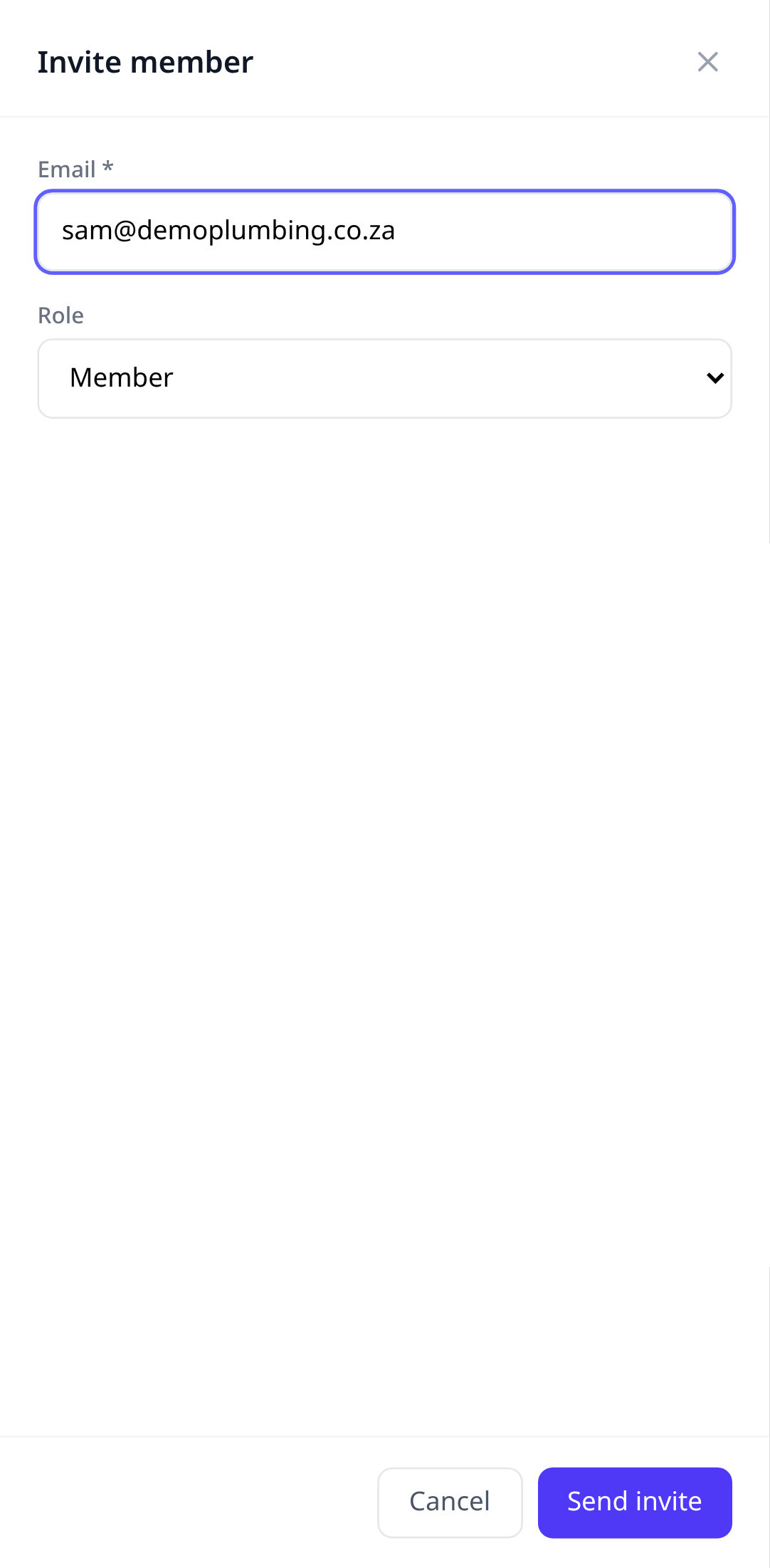
Tap Invite member, enter their email, and pick a role. They get an email with a link. Until they accept, the invite shows under Sent invites and still counts as a seat.
3. Roles
The default roles cover most teams:
- Owner can do everything, including billing and deleting the organisation.
- Manager can change anything except billing.
- Member can create and edit jobs, clients, and documents.
- Viewer can see everything and change nothing.
On the Max plan you can create custom roles and choose exactly which modules each one can see and edit.
What a seat is
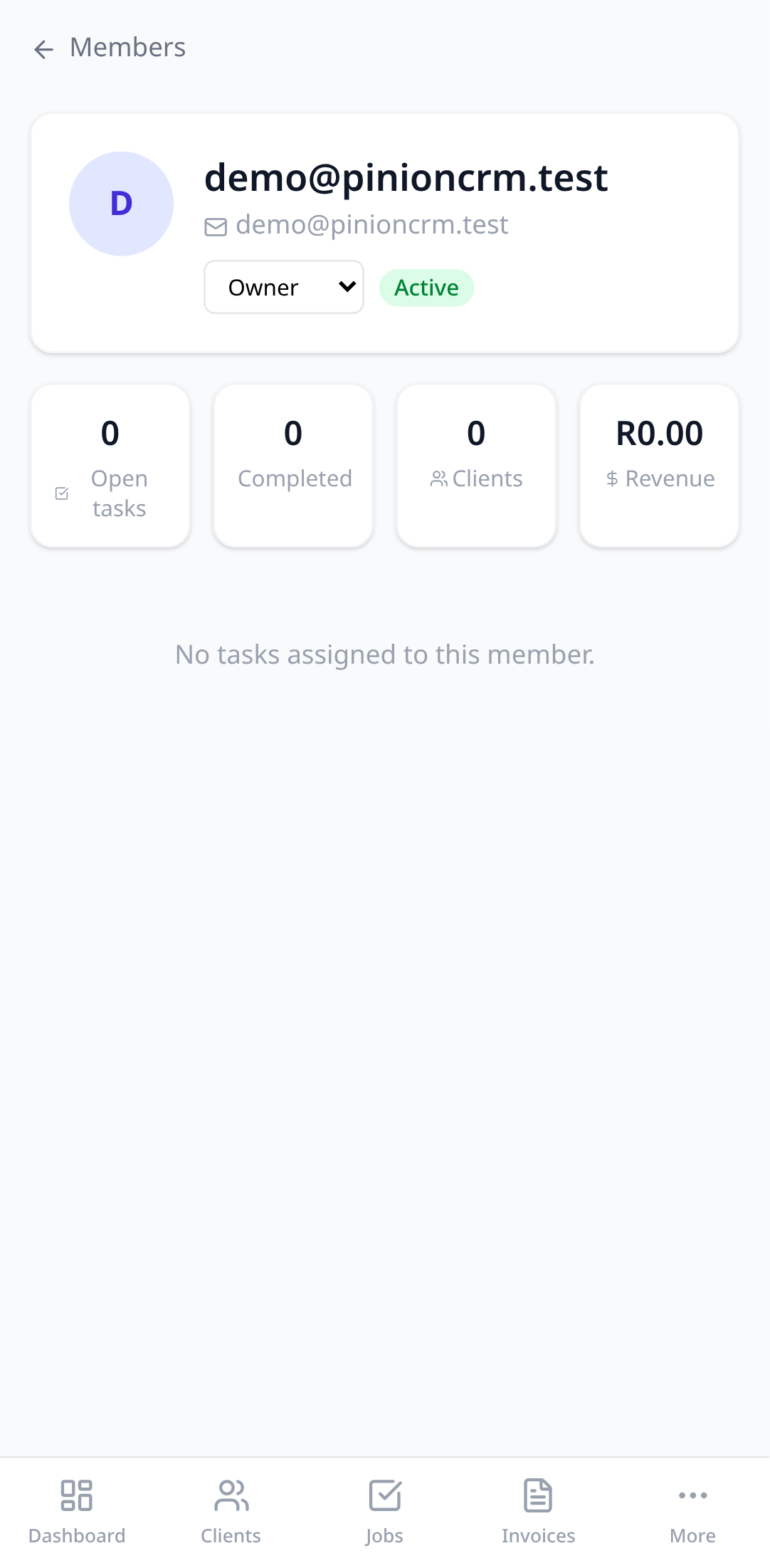
A seat is anyone in the organisation, including you, plus any invitation you’ve sent that hasn’t been accepted. If you’re over the limit after a downgrade, the newest members become view-only rather than being removed. Nobody is ever deleted because of a plan change.
Try it in your own account.
Free to start, no card. Set-up takes minutes, not weeks.